
Acer 4-in-1 USB C Hub
4.2Editor score
4K@60Hz Dual Display
100W Power Delivery
USB-A Data Transfer Port
This guide compares the top 10 Dual HDMI Monitor Adapter options for productivity and multi-screen setups across Windows and macOS systems in October 2026.
Finding the right Dual HDMI Monitor Adapter can transform your workspace into a productive multi-screen environment. Whether you need to extend your desktop or mirror content, selecting a compatible hub is essential for smooth performance.
We evaluated ten top-rated adapters based on resolution support, connection types, and operating system compatibility. This list covers USB-A, USB-C, and DisplayPort solutions to help you find the perfect match for your hardware.
Each pick highlights key features, pros, and cons to guide your decision. Remember that prices and availability change frequently, so verify current listings before purchasing to ensure you get the best deal available today.
4.2Editor score
4.5Editor score

4.4Editor score
The following table provides a side-by-side comparison of all ten adapters reviewed in this guide. Check the specs to find the connection type and resolution support that best fits your setup needs.


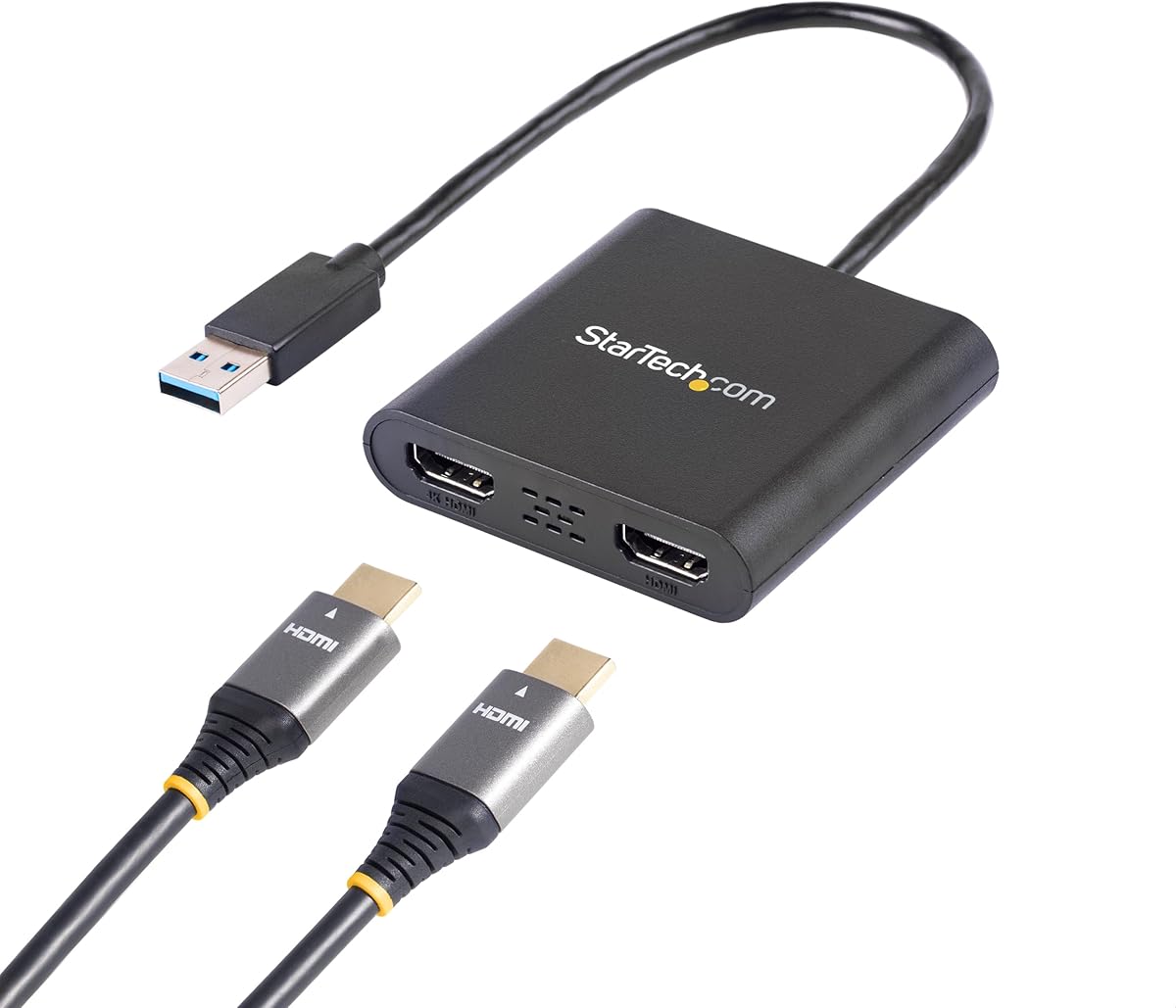
The StarTech USB-A 3.0 to Dual HDMI Adapter stands out as a robust solution for Windows-based workstations. It earns a high rating for its stability and consistent output, making it a top choice for IT professionals.
We may earn a commission when you buy through this link, at no additional cost to you.
This adapter supports up to 4K resolution at 30Hz on one monitor and 1080p at 60Hz on the second. The USB 3.0 connection ensures adequate bandwidth for dual displays without significant latency during typical office tasks.
One trade-off is its limited compatibility; it does not work with macOS or Linux. Additionally, driver installation requires administrator rights which can be a hurdle on managed corporate machines but ensures secure setup.
If you need a reliable dual-screen setup for Windows, this adapter is a safe bet. Its three-year warranty and dedicated support make it ideal for business environments where uptime and reliability are paramount.
This adapter is specifically tuned for Windows X86/X64/ARM platforms ensuring minimal crashes and consistent signal output during long work sessions.
By allowing you to extend your desktop to two external monitors it significantly boosts workflow efficiency for multitasking and data analysis.
We may earn a commission when you buy through this link, at no additional cost to you.
The Acer 4-in-1 USB C Hub offers exceptional value by supporting dual 4K@60Hz displays at a budget-friendly price point. It is particularly appealing for users who need high resolution without breaking the bank.
We may earn a commission when you buy through this link, at no additional cost to you.
Its multifunctional design includes a high-speed USB-A port for data transfer and a 100W power delivery port to keep your laptop charged while using the adapters. This makes it a versatile all-in-one solution.
However the cable is only 20cm long which may limit desk placement options. Also note that macOS users are restricted to mirroring mode rather than extending the desktop across two external screens.
For Windows users or those who do not need extended macOS displays this hub is an excellent choice. It balances performance and price well making it accessible for students and casual professionals.
Both HDMI ports support crisp 4K@60Hz output delivering smooth visuals ideal for media consumption and detailed design work on external monitors.
With 100W PD and USB-A data transfer you can charge your device and move files simultaneously without needing separate cables or ports.
We may earn a commission when you buy through this link, at no additional cost to you.
The Selore USB C Docking Station is a premium option designed to transform your laptop into a full desktop workstation. It features an eight-in-one design that covers video data and charging needs efficiently.
We may earn a commission when you buy through this link, at no additional cost to you.
It delivers dual 4K@60Hz video output which is rare at this price point for premium hubs. The addition of SD card readers and multiple USB ports makes it perfect for creative professionals managing various peripherals.
Keep in mind that macOS users are limited to mirror mode and it requires a full-featured USB-C or Thunderbolt port. These limitations ensure the hardware can handle the bandwidth required for high performance.
If you need a docking solution that eliminates cable clutter and supports multiple displays the Selore hub is a strong investment. Its robust build and wide port selection offer long-term usability.
The included SD/microSD card slot allows direct transfer from cameras to your system speeding up content creation workflows significantly.
Input supports up to 100W with output at 85W keeping your laptop powered even under heavy load with multiple monitors connected.
We may earn a commission when you buy through this link, at no additional cost to you.
This adapter is ideal if your desktop or laptop has a dedicated DisplayPort output. It converts that single DP signal into two HDMI outputs allowing for a dual-screen extended display setup effortlessly.
We may earn a commission when you buy through this link, at no additional cost to you.
It achieves dual 4K@60Hz on compatible systems utilizing Multi-Stream Transport technology. The plug-and-play design means you do not need to install drivers making it convenient for users who prefer simplicity.
The requirement for an external power source and a DP 1.4 source adds a bit of complexity. Also it does not work with docking stations which limits its utility if your port is already shared.
For gamers or professionals with dedicated graphics cards this adapter is a great way to add screens. It ensures high bandwidth and stability essential for smooth visuals across multiple monitors.
By connecting directly to your graphics card you ensure maximum bandwidth availability reducing lag and supporting higher refresh rates.
The support for 4K@60Hz provides crisp and smooth visuals perfect for detailed design work or high-quality video editing.
We may earn a commission when you buy through this link, at no additional cost to you.
The WAVLINK adapter is designed for users who need flexibility across operating systems. It works with both Windows and macOS allowing you to extend screens on either platform with ease.
We may earn a commission when you buy through this link, at no additional cost to you.
You can connect via USB-A or USB-C which makes it compatible with a wide range of laptops. It supports resolutions up to 1080p at 60Hz which is sufficient for office work and productivity apps.
It requires a driver to be installed which might be a hurdle on restricted devices. Also it does not support 4K which might be a limitation for media-focused setups.
If you are in a mixed OS environment this adapter provides a practical bridge. Its focus on extended display modes ensures you can effectively multitask without needing expensive dedicated hardware.
Unlike many adapters that lock you to one OS this one supports both Windows and macOS extending your display capabilities universally.
Whether your laptop has a USB-A or USB-C port you can connect directly without needing an additional adapter dongle.
We may earn a commission when you buy through this link, at no additional cost to you.
This adapter is useful if your computer lacks video out ports but has HDMI input or you need a simple extension solution. It allows you to connect two displays to one source with minimal fuss.
We may earn a commission when you buy through this link, at no additional cost to you.
It supports 4K at 30Hz which is adequate for static work but may feel less smooth for motion. The package includes necessary adapters to fit various USB-C or USB-A ports on your machine.
You will need to install a Silicon Motion driver which might require IT approval on work laptops. The refresh rate is a trade-off for the lower cost and broad OS support it offers.
For general productivity and basic multimedia this adapter serves its purpose well. It is particularly helpful for older machines where upgrading the GPU is not an option.
Despite the driver requirement the setup is straightforward and once installed the connection remains stable for daily use.
At a competitive price point it offers a way to add dual monitors without investing in a full docking station solution.
We may earn a commission when you buy through this link, at no additional cost to you.
This device is strictly a splitter meaning it mirrors content to two screens rather than extending your desktop. It is ideal for presentations or sharing media where the same image is needed on multiple displays.
We may earn a commission when you buy through this link, at no additional cost to you.
It supports 4K at 30Hz and synchronizes audio with the video signal so no extra cables are needed. The plug-and-play design ensures it works out of the box without any configuration.
You cannot use it to extend your desktop which limits its utility for multitasking. If you need different content on each screen this adapter will not meet your requirements.
For simple mirroring tasks like trade shows or classroom presentations this adapter is cost-effective. It handles basic video distribution reliably without software complications.
Since it mirrors the output you can easily show the same content to a client and a projector simultaneously with ease.
Audio travels with the HDMI signal ensuring sound is heard on both displays without needing separate audio wiring.
We may earn a commission when you buy through this link, at no additional cost to you.
This adapter combines dual video outputs with data and power in a compact form factor. It delivers dual 4K@60Hz performance which is impressive for such a small device.
We may earn a commission when you buy through this link, at no additional cost to you.
It includes a USB-A port for peripherals and a high-wattage PD port to charge your laptop while connected. This integration reduces the need for separate dongles or adapters.
Mac users are limited to mirroring as most MST hubs are. The short cable length might restrict where you can place the hub relative to your laptop.
For travelers or desk users with limited space this adapter offers high performance in a portable package. It balances speed and versatility well for everyday computing tasks.
Despite its small size it delivers enough bandwidth for dual high-resolution screens and fast data transfer simultaneously.
With video charging and data combined you carry one device instead of multiple adapters when working on the go.
We may earn a commission when you buy through this link, at no additional cost to you.
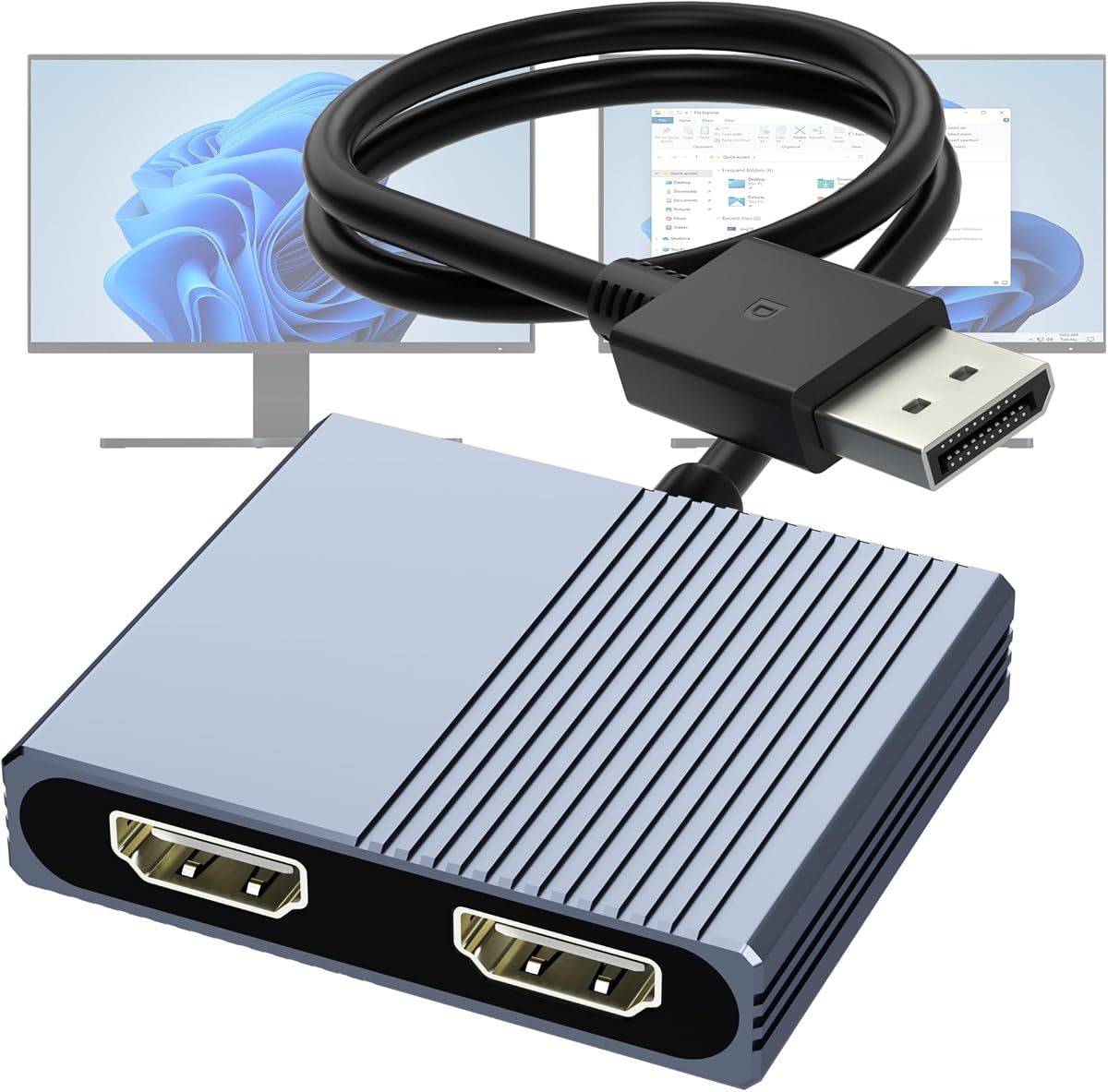
Designed for desktop users with dedicated graphics cards this adapter leverages your GPU's DisplayPort to drive two HDMI monitors. It supports extended mode allowing different content on each screen.
We may earn a commission when you buy through this link, at no additional cost to you.
The aluminum housing helps dissipate heat during prolonged use ensuring stability. It requires a DP 1.4 source to achieve dual 4K which guarantees bandwidth is not a bottleneck.
You cannot use this with integrated graphics or docking stations which limits its use for laptops without dedicated DP ports. This specialization ensures performance for supported devices.
If you have a desktop PC or workstation GPU this adapter is a robust choice. It maximizes the potential of your existing hardware to create a powerful dual-screen workspace.
The aluminum alloy housing actively dissipates heat keeping the adapter cool even during long rendering or gaming sessions.
By utilizing DP 1.4 you get the necessary data throughput to run two high-resolution displays without frame drops.
We may earn a commission when you buy through this link, at no additional cost to you.
This hub is designed for portability and ease of use. It offers dual HDMI ports plus multiple USB-A connectors allowing you to plug in peripherals without occupying laptop ports.
We may earn a commission when you buy through this link, at no additional cost to you.
It supports dual 4K@60Hz which provides smooth visuals for most tasks. The inclusion of 100W PD ensures your laptop stays charged while you work at a desk.
The USB-A ports are 2.0 speed which is fine for keyboards but slower for large file transfers. macOS users are limited to mirroring which affects how you can use external screens.
For home or office setups where you need extra ports and dual screens this hub is convenient. It is a solid choice for users who value simplicity and space-saving design.
Multiple USB ports mean you can connect a mouse keyboard and drive simultaneously without needing extra dongles.
The slim profile fits easily in a laptop bag making it ideal for hybrid workers moving between home and office.
We may earn a commission when you buy through this link, at no additional cost to you.
Selecting the right adapter depends on your laptop's ports and your operating system. This guide covers the critical factors to ensure compatibility and performance.
Check if your device has USB-A, USB-C, or DisplayPort. USB-C with DP Alt Mode is preferred for modern laptops. DisplayPort is common on desktops.
Choose an adapter that matches your available ports to avoid needing extra dongles.
Most adapters support Windows but macOS often limits dual screens to mirroring unless specific chips are used. Linux support varies by driver.
Confirm OS compatibility before buying to ensure you can extend your display as needed.
Look for adapters that support 4K or 1080p at 60Hz. Lower rates like 30Hz can cause lag on second monitors.
Ensure your monitors and adapter support the same resolution for a smooth experience.
Some adapters require driver installation which may need admin rights. Plug-and-play models are easier to set up.
Opt for drivers only if you need specific features not supported by native OS drivers.
Many USB-C hubs include a charging port to power your laptop while using the adapter. Check the wattage matches your charger.
This feature reduces cable clutter and keeps your device charged during use.
Adapters often come with short cables. Measure your desk setup to ensure the cable reaches your monitors comfortably.
A longer cable offers flexibility but may require a separate purchase if not included.
Metal housings dissipate heat better than plastic. Look for sturdy connectors and warranty support for longevity.
Invest in a durable model to prevent connection issues over time.
Hubs often offer USB-A, SD slots, or audio jacks. Consider if you need these additional ports.
A multiport hub can replace the need for other peripherals on your desk.
Connect the adapter to your laptop first then plug in the monitors. Power on the displays before connecting the adapter to ensure detection.
Adjust display settings in your OS to extend rather than mirror screens if supported. Set resolutions to match your monitor's native specs.
Clean ports with compressed air and avoid bending cables excessively. Store the adapter in a safe place when not in use to prevent damage.
Most adapters support mirroring on macOS due to OS limitations. To extend, you need an adapter with DisplayPort MST or a specialized Mac dock. Check product details before purchase.
Some adapters require drivers, especially for extended modes on Windows. Others are plug-and-play. Always check the specs to see if driver installation is required.
Only adapters supporting dual 4K@60Hz will allow this. Many limit one monitor to 4K and the other to 1080p. Review specs carefully for dual high-resolution support.
No, you need an active DP to HDMI adapter. Passive adapters will not work for extended displays on DP sources.
Most will support gaming laptops but refresh rates might drop. For best results, use USB-C hubs with Thunderbolt for high bandwidth.
USB adapters draw power from your laptop. Some models include external power for better stability. If unsure check if it needs an external adapter.
We reviewed ten adapters suitable for different needs ranging from budget-friendly hubs to premium docking stations. The StarTech adapter remains a top choice for Windows stability.
Prioritize compatibility with your OS and ports to ensure smooth operation. Features like power delivery and build quality matter for long-term use.
Check current prices before buying as deals can change. Ensure the adapter you choose meets your resolution and connectivity requirements.