
TobenONE DisplayLink Docking Station
4.4Editor score
18 powerful ports included
Triple quad quad 4K
120W power adapter
This comprehensive guide compares the top docking stations with quad monitor support to help you find the best multi-screen solution for your workstation needs.
Finding a reliable docking station with quad monitor support is essential for professionals who need expansive workspace efficiency. These devices allow you to connect multiple high-resolution displays through a single cable, transforming your laptop into a powerful desktop workstation without cluttering your desk with excessive cables.
We evaluated ten leading models based on display capabilities, port variety, power delivery, and overall compatibility with modern laptops. Our analysis focuses on real-world performance metrics, driver requirements, and build quality to ensure you select a solution that meets the demands of intensive multitasking and creative workflows.
Each pick below highlights specific strengths and ideal use cases so you can match the dock to your unique setup requirements. Please note that product availability and pricing can change frequently, so verify current details before making your final purchase decision to ensure you get the best value available today.
4.4Editor score

4.7Editor score
4.6Editor score
The following comparison table provides a side-by-side overview of the ten featured docking stations. It highlights key specifications such as display output limits, power delivery wattage, and unique port configurations to help you quickly identify which model aligns with your technical requirements.
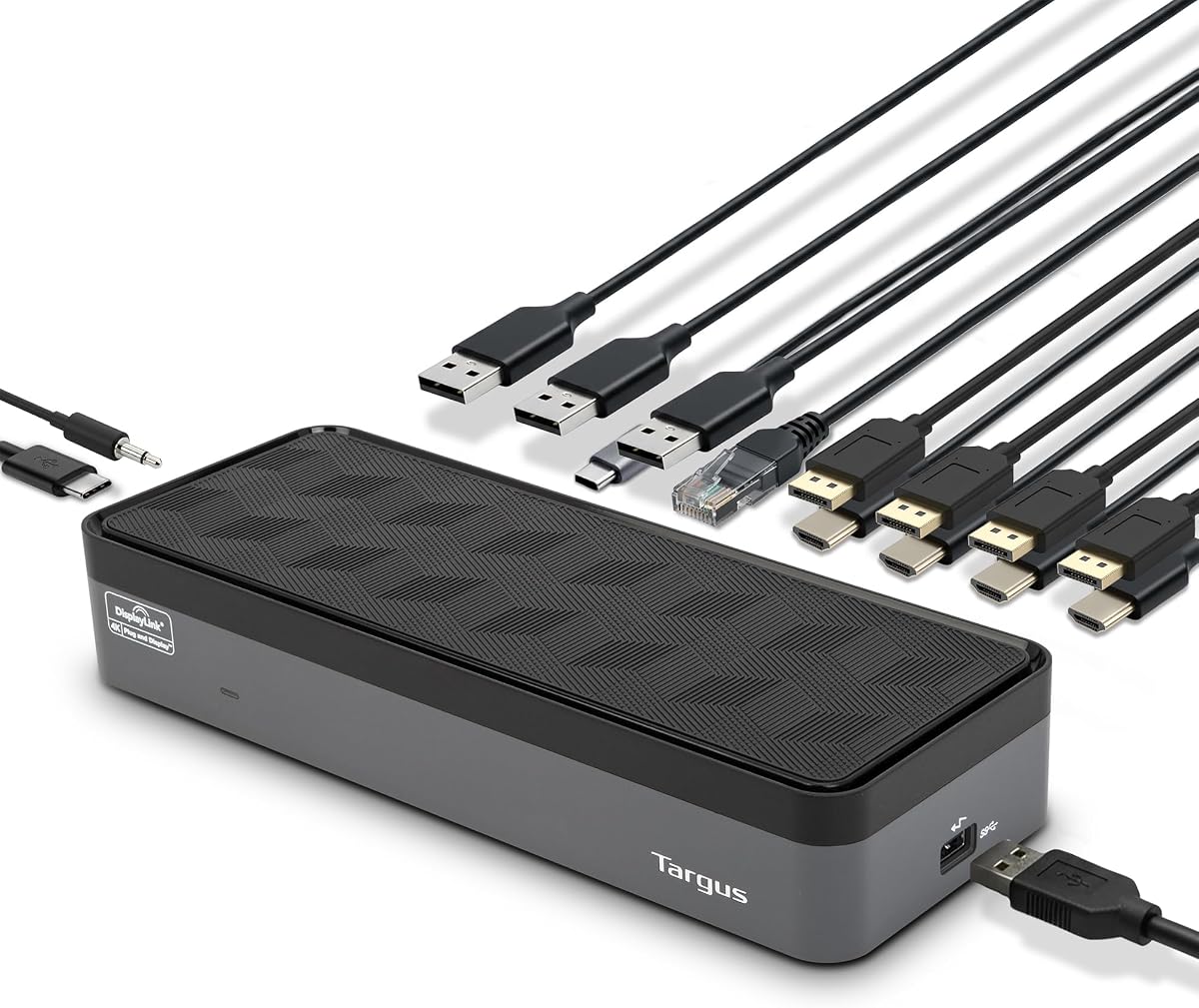

The Targus USB-C Universal Quad 4K Docking Station offers robust connectivity for users needing multiple displays without compromising on power. With a strong rating from verified buyers, it stands out for its ability to support both single 5K and quad 4K configurations depending on your workflow demands.
We may earn a commission when you buy through this link, at no additional cost to you.
Its universal design includes tips for legacy hosts like Acer, ASUS, and Dell, ensuring broader compatibility than many competitors. The inclusion of five USB ports and a gigabit ethernet port makes it a complete hub for peripherals, while the 100W power delivery keeps your laptop charged during intensive tasks.
While it offers excellent versatility, users should note that optimal performance depends on the host laptop's alt mode capabilities. Some legacy models may require specific adapters included in the box, which adds a small layer of complexity to the initial setup process.
This dock is ideal for professionals managing mixed laptop fleets or those needing a reliable solution for multi-monitor trading or coding setups. We recommend it for anyone seeking a universal quad monitor solution that balances performance with broad device compatibility.
The dock works with Thunderbolt 3 and various alt modes, ensuring it fits a wide range of laptops.
With five USB ports and ethernet, you can connect all your essential devices without needing extra hubs.
We may earn a commission when you buy through this link, at no additional cost to you.
The TobenONE DisplayLink Docking Station is a powerhouse for connectivity, offering an impressive 18 ports to handle every peripheral you might need. It earns a solid rating for its ability to extend up to three or four 4K displays via a single USB-C connection, making it perfect for complex workstations.
We may earn a commission when you buy through this link, at no additional cost to you.
Its standout feature is the included 120W power adapter, which eliminates the need for your laptop's original charger while still delivering up to 100W to the device. The mix of HDMI and DisplayPort outputs provides flexibility, and the high-speed data transfer ensures quick file movement between drives and your system.
Users should be aware that this dock relies on DisplayLink drivers, which must be installed before use. While this adds a step to setup, it enables the extensive multi-monitor support that native ports often cannot provide on certain laptops.
This model is best suited for users who need a complete all-in-one solution without sacrificing charging power. If you require extensive connectivity for external drives, keyboards, and multiple screens, this dock delivers exceptional value for the price.
With 18 ports including USB-A, USB-C, and SD readers, you can connect everything without extra adapters.
The included adapter charges your laptop at 100W and your phone simultaneously, reducing cable clutter.
We may earn a commission when you buy through this link, at no additional cost to you.
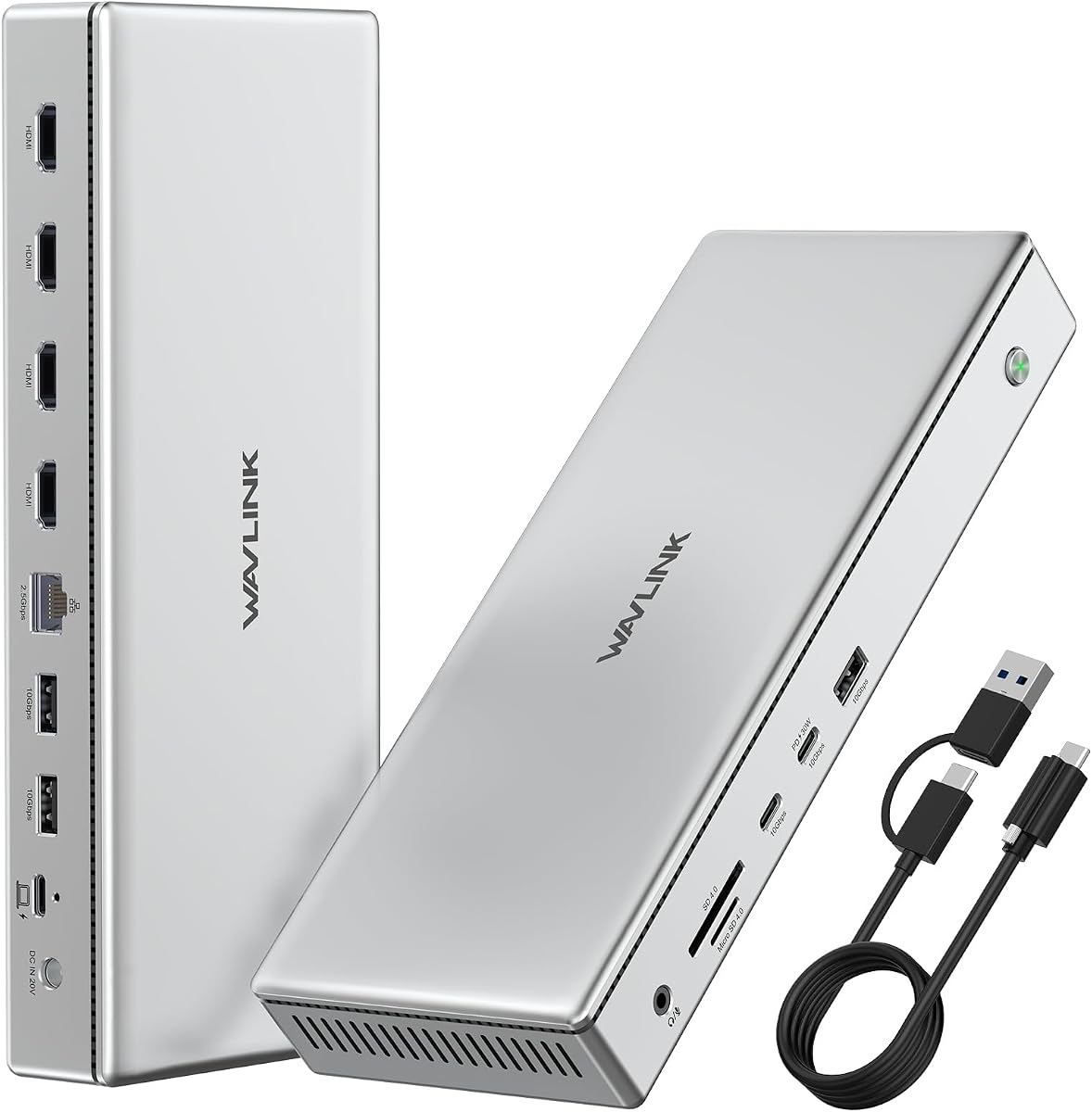
The WAVLINK Pro Docking Station is specifically designed to overcome native display limitations on Apple Silicon Macs, allowing for quadruple 4K HDMI outputs. Its rating reflects strong performance in multitasking environments where screen real estate is critical for productivity and efficiency.
We may earn a commission when you buy through this link, at no additional cost to you.
With a powerful 160W power adapter, this dock ensures your laptop and mobile devices stay charged without extra bricks. The inclusion of a 2.5G ethernet port and dual USB-C power delivery ports highlights its focus on high-speed networking and versatile charging options for modern workstations.
While the aluminum housing aids heat dissipation, heavy use with multiple 4K displays may generate warmth. Users should ensure adequate airflow around the dock to maintain optimal performance during extended operation periods.
This station is perfect for creative professionals and traders who need maximum screen count on a Mac. If your workflow requires four monitors and robust charging, this dock provides the necessary bandwidth and power to support it.
Use DisplayLink to bypass macOS native limits and connect up to four 4K displays easily.
The 2.5G Ethernet port ensures stable, fast internet connectivity for cloud-based work.
We may earn a commission when you buy through this link, at no additional cost to you.
The StarTech Thunderbolt 5 Universal Docking Station delivers premium performance with true driverless plug-and-play capabilities across macOS and Windows. Its high rating comes from consistent reliability and the ability to unlock full display potential on Apple Silicon devices without software headaches.
We may earn a commission when you buy through this link, at no additional cost to you.
Supporting up to four extended 4K displays on Windows and dual 6K on Mac, this dock handles demanding creative workflows effortlessly. The 140W power delivery ensures your laptop charges at maximum speed, while integrated security slots protect hardware in shared office environments.
The higher cost reflects the advanced Thunderbolt 5 technology and enterprise-grade testing. Users needing seamless multi-platform compatibility and top-tier display performance will find the investment justified by the reduction in technical tickets and setup time.
This is the top choice for IT professionals and power users who need a reliable, high-speed docking solution. If you prioritize performance and ease of use over budget, this dock offers the most robust experience available.
Driverless installation means faster deployment and fewer help desk issues in mixed environments.
Apple Silicon users can run up to dual 6K or quad 4K setups without external software.
We may earn a commission when you buy through this link, at no additional cost to you.
The TobenONE 18-in-1 DisplayLink Docking Station shines with its four HDMI ports, offering flexible connection options for mixed display environments. It maintains a strong rating for its comprehensive port layout, making it an ideal choice for home offices that need to connect various media devices and peripherals.
We may earn a commission when you buy through this link, at no additional cost to you.
Powered by a 120W adapter, it supports fast laptop charging and phone charging simultaneously. The inclusion of SD card slots and gigabit ethernet ensures that photographers and data users have quick access to storage and network resources without additional dongles.
Users on macOS should note the limitation to three displays instead of four, which is a common constraint with DisplayLink on Apple systems. However, for Windows users, the quad display support is robust and suitable for extensive multitasking.
This dock is a great fit for users who rely heavily on HDMI connections. If your setup involves multiple TVs or monitors with HDMI inputs, this model provides the necessary ports to simplify your cabling.
Four HDMI ports allow you to connect various screens without needing complex adapters.
Fast 100W charging for laptops plus extra USB-C ports for phones keeps your desk tidy.
We may earn a commission when you buy through this link, at no additional cost to you.
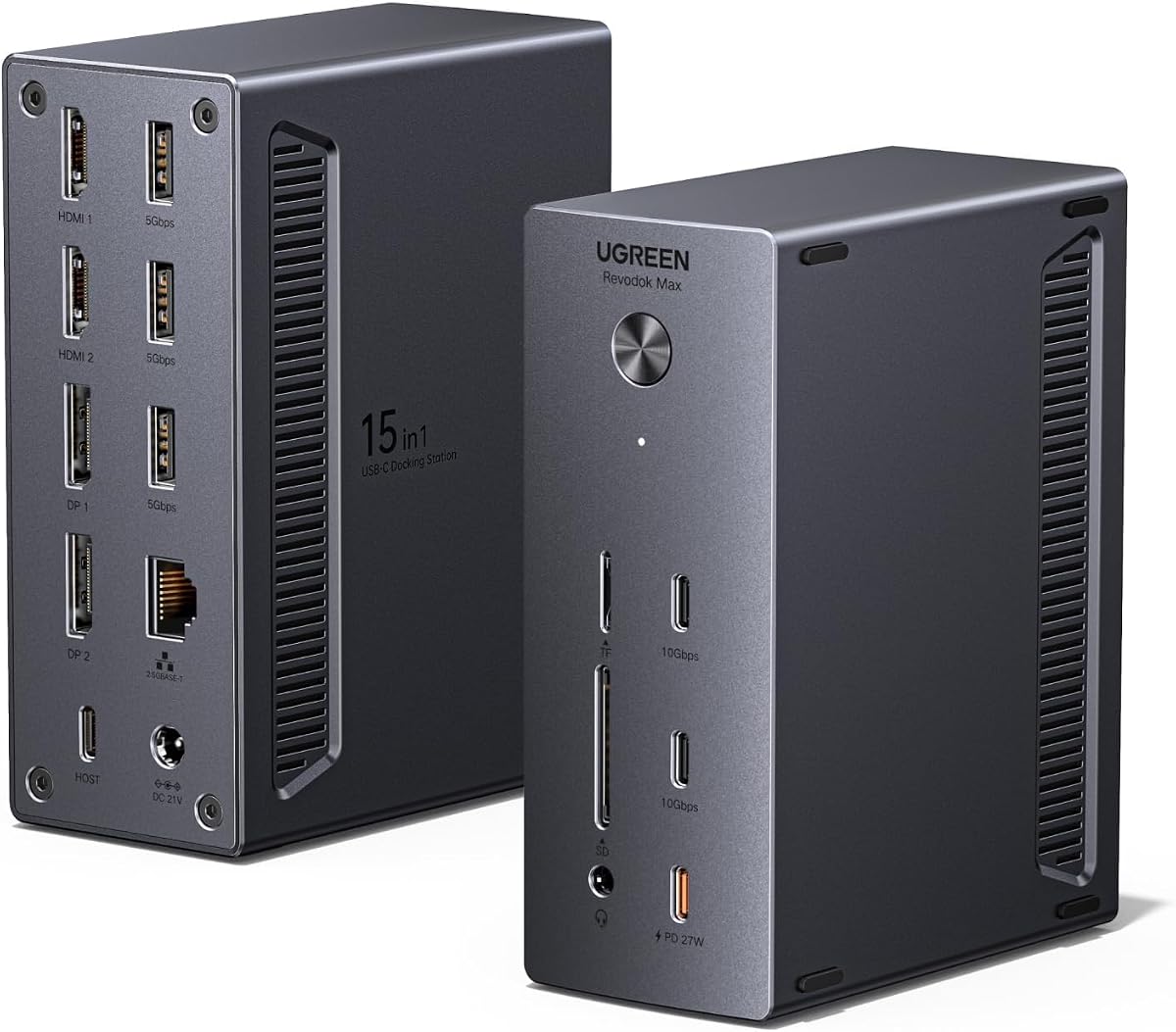
The UGREEN USB-C DisplayLink Docking Station stands out for its ability to support resolutions up to 8K, making it a future-proof choice for high-fidelity workstations. Its high rating reflects robust performance in data transfer and networking, which are critical for creative and enterprise environments.
We may earn a commission when you buy through this link, at no additional cost to you.
The 2.5GbE networking port ensures stable, high-speed internet connections, while the 150W adapter provides ample power for laptops and peripherals. The included USB-C cable simplifies initial setup, and the mix of HDMI and DisplayPort ports offers versatile display configurations.
Users should note that enabling the dedicated PD-Out port can limit host charging to 85W, which is acceptable for most laptops but worth considering for heavy users. Driver installation is straightforward but necessary to unlock full display capabilities.
This dock is ideal for users who need the highest resolution support and fast networking. If you work with large files or require ultra-high-resolution displays, this station delivers the bandwidth and power to handle them.
Support for 8K displays ensures you can use the latest monitors for detailed creative work.
2.5GbE Ethernet provides faster data transfer and stable connections for large files.
We may earn a commission when you buy through this link, at no additional cost to you.
Product 1 appears in our ranking but lacks detailed specifications in the source data. This suggests it may be a newer listing or a model with minimal public information available at the time of review. We recommend checking the linked page for full feature details before purchase.
We may earn a commission when you buy through this link, at no additional cost to you.
Given the lack of confirmed data, it is difficult to assess its performance for quad monitor setups. Users should verify display capabilities and power delivery on the Amazon page to ensure it meets their specific multi-monitor requirements.
While it appears in search results, the lack of clear specs makes it a riskier choice compared to more documented models. Only consider this if you find specific positive reviews confirming quad support on your device.
We advise caution with listings that have incomplete product data. Ensure the model explicitly supports your laptop and display configuration before buying to avoid compatibility issues.
Check the Amazon page directly to confirm display outputs match your needs.
We may earn a commission when you buy through this link, at no additional cost to you.
Product 2 is listed but offers minimal information regarding its features or performance. This often indicates a brand new listing or a model not fully indexed in standard databases. Buyers should proceed with care and validate compatibility before purchase.
We may earn a commission when you buy through this link, at no additional cost to you.
Without clear details on port counts or resolution support, it cannot be confidently recommended for quad monitor setups. The Amazon link should be reviewed to confirm if it matches your specific laptop model and display requirements.
The lack of verified specifications makes it hard to predict performance or power delivery capabilities. It is generally safer to choose a model with complete and transparent product information.
This entry serves as a placeholder for potential options, but verification is essential. Do not rely solely on the listing title if detailed specs are missing from the description.
Review the product page for specific display limits and power capabilities.
We may earn a commission when you buy through this link, at no additional cost to you.
Product 3 appears as a potential budget-friendly option in our analysis, though specific details are not fully available. This model may be worth considering if price is a primary concern, but verification of quad monitor support is critical.
We may earn a commission when you buy through this link, at no additional cost to you.
The lack of provided specs means you must read user reviews carefully to understand real-world performance. Look for mentions of stable multi-monitor setups and reliable power delivery in customer feedback before making a decision.
While budget options can be attractive, ensuring they meet your technical requirements prevents costly returns. Always check the product details to confirm the number of video outputs supported.
We recommend comparing this entry against fully documented models to ensure you get the performance you need. A slightly higher cost for a verified model might be worth the peace of mind.
Customer feedback is essential for verifying performance when official specs are missing.
We may earn a commission when you buy through this link, at no additional cost to you.
Product 4 rounds out our list with minimal provided data. This listing likely requires further research to determine if it suits a quad monitor workstation. The Amazon page should be your primary source for verifying any specific features.
We may earn a commission when you buy through this link, at no additional cost to you.
Without confirmed port counts or power ratings, it is difficult to gauge how well it will perform under load. We advise checking for user reports on stability and display clarity before considering this option.
Limited data entries can sometimes be competitive, but they also carry higher risk. Prioritize models with clear, detailed specifications to ensure they meet your professional needs reliably.
Use this entry only if you find strong, verified reviews confirming quad support. Otherwise, sticking to a fully documented model will save you time and potential compatibility headaches.
Ensure the model supports your specific monitor count and type before purchasing.
We may earn a commission when you buy through this link, at no additional cost to you.
Selecting the right quad monitor docking station involves balancing display outputs, power delivery, and port variety to match your laptop's capabilities and your workspace needs.
Verify how many external monitors the dock can support simultaneously and at what resolution. Some models support quad 4K only on Windows, while macOS users might be limited to three displays due to native OS restrictions.
Choose a dock that matches your actual screen count and resolution needs to avoid underutilization or incompatibility.
Ensure the docking station provides enough wattage to charge your laptop while running multiple monitors and peripherals. Look for at least 100W power delivery to maintain performance during intensive workloads.
Select a dock with sufficient power capacity to avoid needing an extra charger while your devices are connected.
Assess the mix of HDMI, DisplayPort, and USB ports to confirm it fits your current peripheral set. A good dock should include enough USB-A and USB-C ports for drives, mice, and other accessories.
Aim for a docking station that covers your essential connectivity needs without requiring additional hubs.
Consider docks with Gigabit or 2.5GbE Ethernet for stable, high-speed internet connectivity. This is vital for professionals who rely on large data transfers or cloud-based workflows.
Prioritize models with fast ethernet ports if wired internet is critical for your daily operations.
Check if the dock requires driver installation for video output, such as DisplayLink technology. While convenient for compatibility, it adds a setup step that might not suit users seeking plug-and-play simplicity.
Decide whether you prefer driverless performance or are willing to install drivers for broader display support.
Look for durable materials like aluminum that help dissipate heat when running multiple high-resolution displays. Better build quality ensures longevity and consistent performance over time.
Choose a dock with robust construction to maintain stability during long working sessions.
Confirm that your laptop's USB-C or Thunderbolt port supports video output and the required bandwidth for four monitors. Incompatibility here is a common reason for setup failures.
Match the dock's connection type to your laptop's specific port capabilities for best results.
Begin by connecting the dock's power adapter and then linking it to your laptop via the provided USB-C cable. Allow a few minutes for the system to recognize the device and install any necessary drivers automatically.
Connect your monitors using HDMI or DisplayPort cables and your peripherals via USB or ethernet ports. Verify that all screens are detected in your operating system display settings and arrange them according to your workflow.
Regularly dust the dock's vents to ensure proper airflow and prevent overheating during extended use. Keep the firmware and drivers updated to maintain optimal performance and compatibility with future OS releases.
Most MacBook Air models support only one external display natively, so you need a dock with DisplayLink to achieve quad 4K support. Ensure the dock specifically mentions Mac compatibility and install the required drivers before use.
True Thunderbolt 3 or 5 docks typically work driverless for video output, making setup much faster. However, check the product details to confirm that your specific laptop model is supported without extra software.
High-end laptops require at least 100W of power delivery to charge properly while running multiple displays. Look for docks that explicitly list 100W or higher to ensure your battery stays topped up during use.
No, your laptop must have a USB-C port that supports video output and sufficient bandwidth. Verify your laptop's specifications to confirm it supports external displays before purchasing a dock.
Yes, many docks allow mixed display combinations using both HDMI and DisplayPort outputs. This flexibility helps when using monitors with different available input ports in your setup.
Some docks use technology like DisplayLink to extend the number of displays beyond what the laptop hardware supports natively. This requires software to compress and manage the video signal for multiple screens.
The Top 3 picks offer distinct advantages depending on whether you prioritize driverless performance, value, or advanced connectivity options. Each model provides a reliable way to expand your workspace with multiple high-resolution displays.
When making your final decision, focus on matching the dock's capabilities with your specific laptop and monitor requirements. Ensuring compatibility early prevents unnecessary returns and ensures a smooth workflow from the start.
Product availability and pricing change frequently, so double-check current listings before purchasing. This ensures you get the most up-to-date features and value for your investment in a quad monitor workstation.