
WAVLINK USB 3.0/USB C to HDMI Universal Video Adapter
4.4Editor score
Supports up to 6 monitors
Affordable price point
USB 3.0 GPU certified
Compare the top 10 Displaylink Adapters for Mac and Windows laptops to find the perfect dual monitor solution for your workspace needs in October 2026.
Finding the right Displaylink Adapter can transform your single-screen laptop into a powerful dual-monitor workstation. These devices use advanced technology to extend your display without relying on native graphics ports.
We compared ten top-rated adapters based on compatibility, video quality, charging support, and build durability. Our analysis covers options for Mac M1 through M5 chips and various Windows systems.
Each pick highlights unique strengths like USB C power delivery or DisplayPort outputs. Keep in mind that product prices and availability change frequently so verify current details before buying.
4.4Editor score

4.8Editor score

4.5Editor score
This side-by-side comparison highlights key specifications for each adapter to help you quickly identify the best fit for your laptop and monitor setup.



This adapter stands out with its impressive 4.8 rating and powerful DisplayLink technology. It is designed specifically to bypass the single-screen limitation on many modern MacBooks effectively.
We may earn a commission when you buy through this link, at no additional cost to you.
Its key strengths include dual 4K 60Hz DP ports that ensure crisp visuals for professional workflows. The 100W PD charging keeps your laptop powered while you work on extended tasks.
The trade-off involves needing to install the driver beforehand and using DP cables if your monitors only have HDMI inputs. These are acceptable compromises for the high performance it delivers.
If you use an M1 to M4 MacBook Pro or Air and need a reliable dual-monitor setup, this adapter is a top recommendation for seamless productivity and stability.
It works seamlessly as a dual monitor adapter for Mac users needing extended desktops without screen flicker.
The primary DP port supports MST functions while the 100W PD port ensures your notebook stays powered.
We may earn a commission when you buy through this link, at no additional cost to you.
This universal video adapter offers excellent value for users needing flexible multi-monitor setups on a budget. It allows connecting multiple displays using one adapter per monitor effectively.
We may earn a commission when you buy through this link, at no additional cost to you.
Its standout feature is the ability to support up to six monitors on PCs when used in multiples. The compact size and LED status indicator make setup simple and clear.
You must install the DisplayLink driver first to enable functionality across Windows and Mac systems. This initial step is standard for this technology and ensures stable performance.
For anyone looking for a cost-effective way to expand their workspace without high-end specs, this adapter provides reliable multi-monitor capabilities and good connectivity.
You can connect multiple additional monitors to your computer by using one adapter per monitor for up to six total.
External 2.1CH Microphone in and Earphone output make it convenient for calls and audio needs.
We may earn a commission when you buy through this link, at no additional cost to you.
This adapter is engineered for reliable home office and business use with dual-display support for multitasking. It features flexible connectivity options to match different laptop generations and port types.
We may earn a commission when you buy through this link, at no additional cost to you.
Its key strength lies in the integrated USB-A adapter that stays with the device making switching between ports effortless. The DL-6950 chipset ensures stable 4K 60Hz performance across supported systems.
Windows users need to install the driver while ChromeOS systems support it automatically. MacOS is not recommended for this specific model so check your OS compatibility carefully.
If you need a robust solution for hybrid workspaces with dedicated IT support, this Plugable adapter delivers consistent performance and reliable connectivity for everyday productivity.
Use USB-C on newer systems or the attached USB-A adapter for older Windows laptops when ports are in use.
Backed by Plugable's lifetime North American support team to help whenever you need it for business.
We may earn a commission when you buy through this link, at no additional cost to you.
This adapter transforms your laptop into a productivity powerhouse by adding two crystal-clear 4K monitors via a single USB-C port. It is designed for multitasking and office work seamlessly.
We may earn a commission when you buy through this link, at no additional cost to you.
It features 100W USB-C PD charging to keep your MacBook Pro or Air powered up during long sessions. The 3x USB-A ports let you connect peripherals effortlessly without extra hubs.
Unplug the adapter only when the computer is off to ensure proper operation and avoid driver conflicts. It is not suitable for gaming or HDCP content so manage your media needs accordingly.
For professionals who need a compact and powerful hub to boost their workspace efficiency this ACASIS adapter provides great connectivity and stable dual monitor performance.
The 100W USB-C PD port delivers high-speed charging so you won't drain your battery during long sessions.
This compact lightweight aluminum hub stays cool under pressure and slips into your bag for work-from-home.
We may earn a commission when you buy through this link, at no additional cost to you.
This HDMI splitter delivers dual 4K 60Hz displays from a single Thunderbolt or USB-C port designed for seamless compatibility with Macs and PCs. It adds two extended screens for greater productivity effectively.
We may earn a commission when you buy through this link, at no additional cost to you.
The hybrid 2-in-1 USB cable allows for easy connectivity to USB-C or USB-A ports providing versatile compatibility with different devices. You can effortlessly mirror or expand your screen content to work.
Note that iOS Linux and Unix are not supported so ensure your system matches the supported list before purchasing. The 12-month warranty and technical support provide added peace of mind for users.
Ideal for Macbook Neo users needing reliable dual-monitor capabilities this WAVLINK adapter offers solid performance and connectivity for everyday office software and web work.
The hybrid 2-in-1 cable allows for easy connectivity to USB-C USB-A Thunderbolt 3/4 and USB 4 ports.
Works with Windows 11/10 macOS 11 or later and ChromeOS 100+ systems with Thunderbolt or USB-C.
We may earn a commission when you buy through this link, at no additional cost to you.
This adapter adds two 4K 60Hz HDMI external displays to MacBook M1 through M5/Neo from a single USB-C port even base models limited to one display. It creates three total screens for work.
We may earn a commission when you buy through this link, at no additional cost to you.
It has been recognized as the Best DisplayLink Adapter for MacBook Neo by MacWorld for its reliability and performance. Windows and ChromeOS systems are plug-and-play while Mac users need driver setup.
Note that HDCP-protected streaming apps are not compatible so use a standard display adapter for entertainment. Productivity coding and office apps work fully to support your daily tasks effectively.
If you need to overcome native display limits on your MacBook this Plugable adapter delivers a robust dual-monitor solution with lifetime support from their North American team.
Adds two 4K 60Hz HDMI external displays to MacBook M1 through M5/Neo from a single USB-C port.
Include lifetime support from our North American team of connectivity experts designed with reliability at its core.
We may earn a commission when you buy through this link, at no additional cost to you.
This USB 3.0 mini dock features dual monitor DisplayPort outputs and a GbE port making it ideal for small office workspaces. It is bus-powered and portable for easy setup anywhere.
We may earn a commission when you buy through this link, at no additional cost to you.
The 1ft attached cable provides setup flexibility and extended port reach to devices like Surface Pros to reduce port strain. It supports multiple OS platforms including Windows and Chrome OS automatically.
You will need automatic driver setup for full functionality which happens easily on supported systems. The compact form factor makes it a great choice for travel or limited desk setups.
For users needing a small reliable docking station with Ethernet and dual video outputs this StarTech mini dock provides a simple and effective solution for connectivity.
Portable USB Type-A docking station with a 1ft attached cable to provide setup flexibility and extended port reach.
This mini dock is compatible with wide range of USB-A laptops ultrabooks chromebooks and Surface Pros.
We may earn a commission when you buy through this link, at no additional cost to you.
This adapter delivers crystal-clear visuals with dual 4K 60Hz via USB-C or USB-A ports ideal for Mac M1 M5 and Macbook Neo users. It transforms any laptop into a powerful dual-display workstation.
We may earn a commission when you buy through this link, at no additional cost to you.
It features WAVLINK's encrypted DL-chip technology to ensure enterprise-level data protection for sensitive information during daily operations. This advanced security is trusted for secure corporate environments effectively.
DisplayLink Driver installation is required and you must visit their website to download the latest version. It does not support Linux Unix iPad or iOS so verify your device compatibility carefully.
For professionals needing secure reliable dual-monitor capabilities this WAVLINK adapter offers robust connectivity and protection to boost productivity across your workspace and tasks.
Equipped with WAVLINK's encrypted DL-chip technology to ensure enterprise-level data protection and safeguard sensitive info.
Compatible with Windows 11/10 macOS 11 or later ChromeOS 100+ systems with Thunderbolt USB 4 or USB-C.
We may earn a commission when you buy through this link, at no additional cost to you.
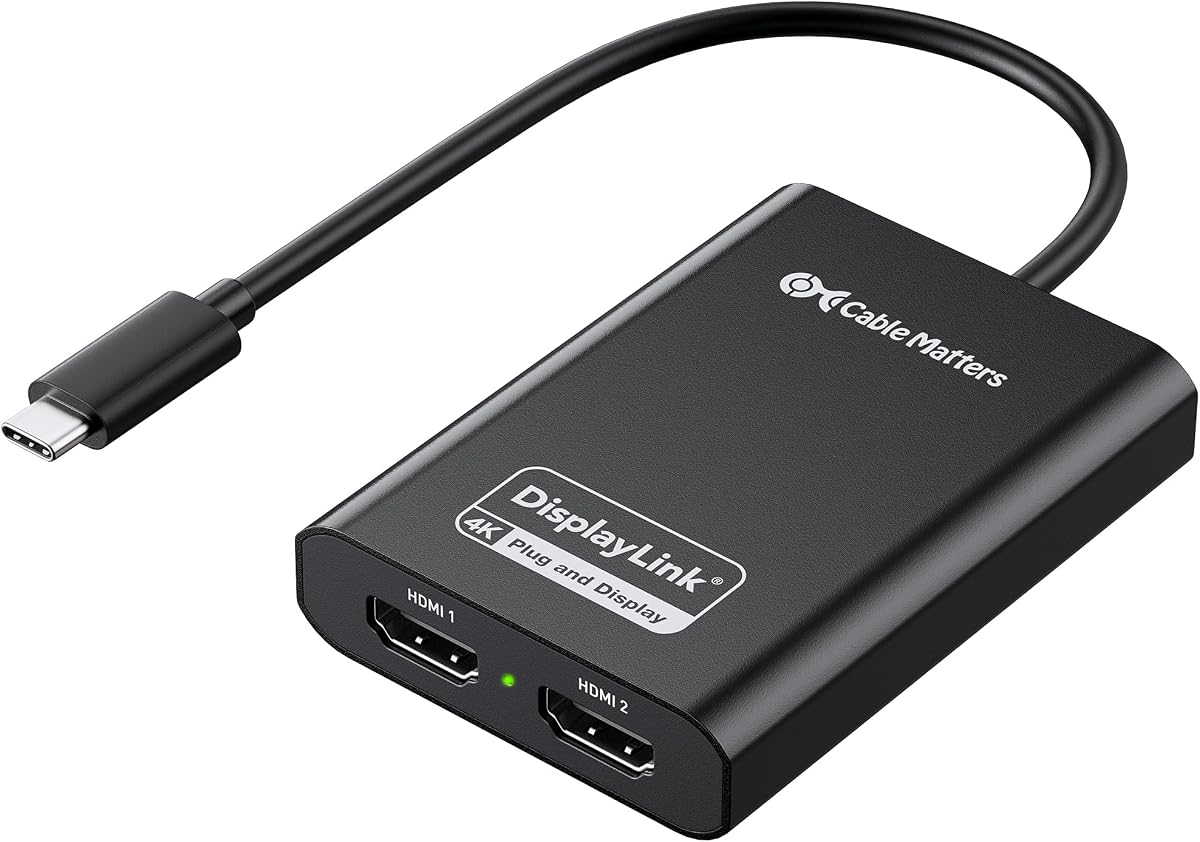
This adapter uses DisplayLink technology and driver installation to break the single-display limit on many Mac laptops. It turns one USB-C port into two HDMI outputs for a real dual-monitor workspace.
We may earn a commission when you buy through this link, at no additional cost to you.
Its aluminum housing efficiently dissipates heat to maintain stable performance and feels durable for everyday use. For best 4K performance use a Windows 10/11 laptop with newer CPU as specified.
Note that HDMI cables are not included so you need to provide your own for setup. This is common for such adapters but ensure you have compatible cables ready before using the device.
For users seeking a reliable durable adapter to expand their workspace anywhere this Cable Matters option provides solid performance and great build quality for travel and office use.
Enjoy two extended 4K 60Hz HDMI monitors on macOS or Windows for true multitasking freedom with this adapter.
Crafted with a premium aluminum alloy enclosure that efficiently dissipates heat to maintain stable performance.
We may earn a commission when you buy through this link, at no additional cost to you.
This adapter enables connection of two 4K 60Hz displays to Macs or Windows computers to expand your onscreen work and play area. It also supports higher refresh rates for lower resolutions effectively.
We may earn a commission when you buy through this link, at no additional cost to you.
It includes a USB-A female to USB-C male adapter for flexible connection to Thunderbolt or USB 3 or 4 ports. Support includes M1 Pro Max and Ultra models making it versatile for different Mac setups.
You can open multiple applications on different displays browse the web and watch videos using this connection. The adapter supports audio and allows viewing work on larger screens comfortably.
If you need support for higher refresh rates or multiple display options this Sonnet adapter offers solid performance and connectivity for diverse computing needs and displays.
Expands Your Onscreen Work and Play Area to open multiple applications on different displays for better viewing.
Also supports 1080P and other lower resolution displays at 60Hz and supports audio effectively.
We may earn a commission when you buy through this link, at no additional cost to you.
Choosing the right adapter requires balancing compatibility, video output, and port options for your specific laptop and monitor setup.
Some adapters use DisplayPort while others use HDMI so check your monitor inputs. HDMI is more common but DisplayPort may offer higher refresh rates or specific Mac compatibility.
Always match the output type to your monitor's available ports and consider cables if needed for connectivity.
Look for adapters with 100W Power Delivery if you want to charge your laptop through the same cable. This simplifies your desk setup by reducing adapter clutter.
Ensure the charging wattage meets your laptop's requirements especially if you use it for heavy productivity tasks.
Verify that the adapter supports your OS such as Windows macOS or ChromeOS. Some models exclude iOS Linux or Unix which limits their usefulness for certain users.
Driver installation is usually required so confirm that your system allows it before purchasing.
Most adapters support dual 4K at 60Hz which is standard for productivity. Higher refresh rates may be available for lower resolutions depending on the model.
Choose based on your monitor capabilities to avoid screen flicker or lower performance.
Extra USB ports can reduce the need for additional hubs by connecting peripherals like mice or keyboards directly.
Check if the adapter provides USB-A or USB-C data ports to match your devices.
Aluminum housings help dissipate heat better than plastic which keeps the adapter stable during long sessions.
Portability matters if you travel so compact designs with good heat resistance are ideal.
Lifetime support from brands like Plugable can be valuable for businesses needing reliable solutions.
Warranty length indicates confidence in the product's durability so check terms before buying.
DisplayLink technology does not support HDCP protected content so streaming services may not work on these adapters.
Use them for productivity tasks and a separate adapter for entertainment if needed.
First download and install the latest DisplayLink driver from the official website before connecting the adapter. This ensures your operating system recognizes the external displays correctly.
Connect the adapter to a USB-C or USB-A port that supports data and if possible use a port with Power Delivery for charging your laptop.
Unplug the adapter only when the computer is off to prevent driver conflicts and maintain stable performance during your daily work sessions.
Yes many DisplayLink adapters are designed to bypass the single external display limit on Mac M1 M2 and M3 chips. You must install the DisplayLink Manager app and allow Screen Recording permission for the adapter to function correctly.
No DisplayLink adapters are optimized for productivity tasks like spreadsheets and coding rather than gaming. They introduce latency and are not recommended for fast moving graphics or interactive applications.
DisplayLink uses software to compress and transmit video data over USB so a driver is required to manage this process. Without it the external displays will not function or will show limited resolution.
Many top models support dual 4K at 60Hz which provides smooth visuals for office work. Check the specific adapter specs to confirm it meets your monitor capabilities and refresh rate needs.
Yes most adapters support both Windows and macOS as well as ChromeOS. However macOS may require additional permissions and driver steps to enable dual extended displays properly.
Some adapters allow you to connect up to six monitors using multiple adapters but single units usually support two displays. Verify the adapter's limit based on your desired multi-monitor setup.
Several models include a 100W Power Delivery port to charge your laptop while connecting external displays. Ensure your laptop needs match the adapter's PD output to avoid battery drain.
DisplayLink adapters do not support HDCP protected content which includes streaming services like Netflix and Hulu. You need a standard direct connection adapter for viewing protected videos on external screens.
We reviewed ten top adapters offering various features like dual 4K outputs power delivery and secure encryption to suit different professional needs.
Prioritize your OS compatibility and display requirements to ensure you select a model that integrates smoothly with your existing laptop and monitor setup.
Prices change frequently so check current details before buying to confirm availability and the best deal for your workspace.