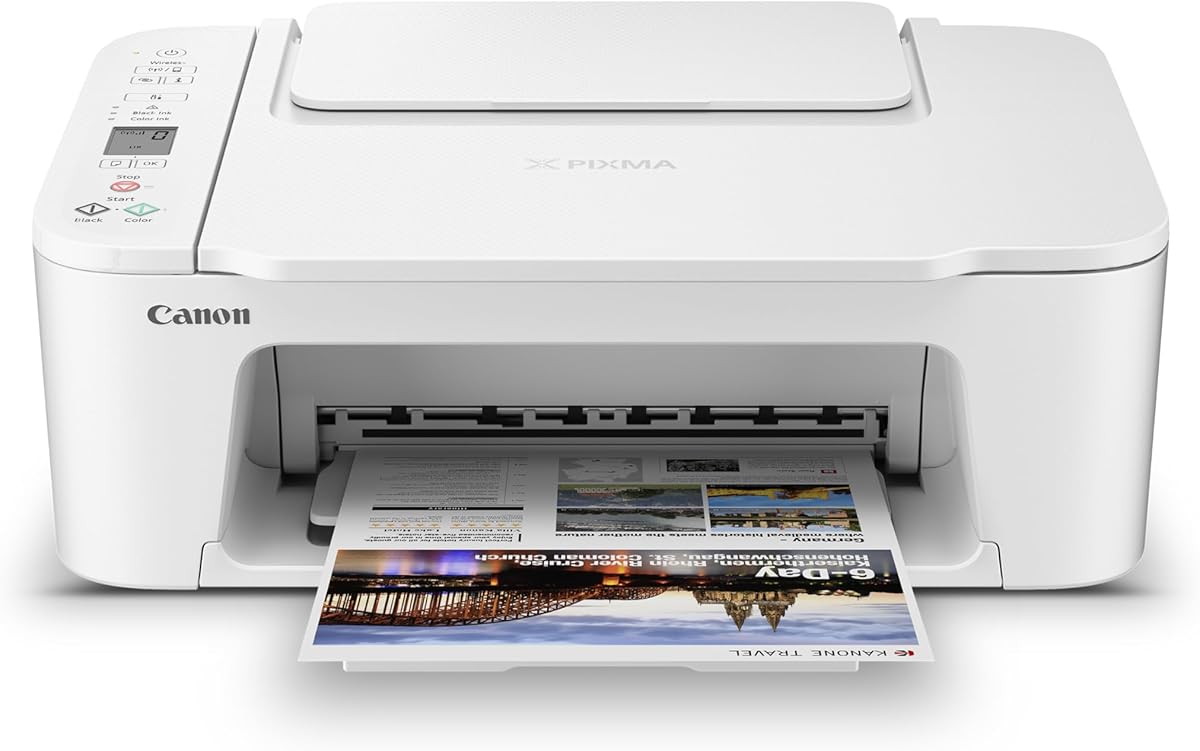
Canon PIXMA TS3720
4.0Editor score
Dual-band Wi-Fi connectivity
Mobile app support
Compact desktop design
This guide compares the top 10 Chromebook compatible printers for home and office use, evaluating connectivity, print quality, features, and value for students
Finding a reliable printer that works seamlessly with your Chromebook is essential for students and professionals alike. Modern Chromebooks often lack traditional driver support, so choosing a device with robust cloud and mobile printing capabilities ensures smooth workflow integration without technical headaches or compatibility issues.
We evaluated ten leading models based on their wireless connectivity, ease of setup, print quality, and specific Chromebook compatibility features. Our analysis focuses on real-world performance metrics including scan speed, duplex printing support, and the reliability of mobile app interfaces to help you make an informed purchasing decision today.
Each product selection highlights key strengths and potential drawbacks to give you a clear picture of what to expect. While pricing fluctuates frequently, the core features and compatibility standards remain consistent. Check current availability and offers before finalizing your purchase to ensure you get the best value for your needs.
4.0Editor score

4.3Editor score
4.2Editor score
The following table provides a side-by-side comparison of all ten selected models, highlighting their core specifications and key differentiators to help you quickly identify the device that best fits your specific printing requirements and workspace constraints.


The Canon PIXMA TS3720 stands out as a top choice for Chromebook users seeking simplicity and reliability. With a solid 4.0 rating, this printer offers seamless connectivity without requiring complex driver installations on Chrome OS devices.
We may earn a commission when you buy through this link, at no additional cost to you.
Its dual-band Wi-Fi ensures stable connections across your home network, while the Canon PRINT app allows direct printing from mobile devices. The streamlined setup process means you can start printing schoolwork or documents within minutes of unboxing.
While it lacks automatic duplex printing, which might increase paper usage for large documents, the trade-off is a lower price point and compact design. The intuitive 1.5 inch LCD screen makes managing basic print jobs straightforward for all users.
This model is ideal for students and home users who prioritize ease of use over advanced features. Its explicit compatibility with Chromebook makes it a worry-free addition to any digital workspace needing consistent wireless performance.
Designed to work directly with Chromebook systems without requiring additional driver software or complex network configurations.
Dual-band Wi-Fi provides robust connection stability, minimizing dropouts during critical print jobs or scans.
We may earn a commission when you buy through this link, at no additional cost to you.
The HP DeskJet 2955 leverages artificial intelligence to optimize print formatting, ensuring emails and web pages look professional without wasted paper. While its rating is slightly lower, the AI capabilities offer unique value for users managing digital documents.
We may earn a commission when you buy through this link, at no additional cost to you.
Features like automatic content removal help reduce clutter in printed outputs, making it great for study notes or reference materials. The included 3-month Instant Ink trial provides significant cost savings on toner usage during the initial setup period.
Users should note that print speeds are moderate compared to higher-end models, and the basic input tray limits volume handling. However, for occasional home printing needs, the smart features outweigh the speed limitations for many buyers.
Choose this printer if you want smart tools to improve document quality without manual editing. It is particularly useful for Chromebook users who frequently print from browsers or email clients and want cleaner results automatically.
Automatically removes unwanted content from web pages and emails to create cleaner, more focused printed documents.
Includes a 3-month trial of Instant Ink to help manage consumable costs effectively from the start.
We may earn a commission when you buy through this link, at no additional cost to you.
Offering a robust feature set at a competitive price, the Canon PIXMA TS6520 excels with automatic duplex printing and a clear OLED display. Its 4.2 rating reflects high satisfaction among users who need reliable two-sided document handling.
We may earn a commission when you buy through this link, at no additional cost to you.
The hybrid ink system ensures sharp text and vivid colors, suitable for both homework assignments and occasional photo prints. Connectivity is stable with dual-band Wi-Fi, making it easy to integrate into various home networks or offices.
While the OLED display adds convenience, ink costs can accumulate over time if not monitored. Users should be prepared to replace cartridges regularly for optimal performance, which might offset the initial savings of the unit.
This model is an excellent choice for families or students who need frequent two-sided printing. The combination of quality output and smart features makes it a strong contender in the mid-range category for Chromebook users.
Automatic duplex functionality saves paper and time by printing on both sides of the sheet without manual intervention.
The OLED display provides clear status updates and ink level monitoring at a glance for better maintenance.
We may earn a commission when you buy through this link, at no additional cost to you.
The Canon PIXMA TS4320 is engineered for spaces where desk real estate is limited, featuring a sleek compact design that blends into any room. Its 4.0 rating indicates solid performance for basic printing needs without sacrificing build quality.
We may earn a commission when you buy through this link, at no additional cost to you.
Energy Star certification ensures it operates efficiently, reducing power consumption during idle times. The straightforward setup process means you can connect it to your Chromebook quickly and start printing documents or scans almost immediately.
It does lack automatic duplex printing, which is a trade-off for its small size and lower price point. Users printing large volumes of text may find this requires manual flipping, but for occasional use it is acceptable.
Ideal for dorm rooms or small home offices, this printer offers essential functions in a portable form factor. Its reliable wireless connectivity and eco-friendly design make it a practical choice for environmentally conscious users.
Designed to fit into tight spaces like dorm rooms or desks with limited surface area.
Energy Star certification reduces power usage, helping lower electricity bills over the device lifespan.
We may earn a commission when you buy through this link, at no additional cost to you.
This model brings multifunctional power to home offices with features like faxing and an auto document feeder. Its 3.9 rating suggests reliable core performance though some users report minor software quirks during setup.
We may earn a commission when you buy through this link, at no additional cost to you.
The ADF allows for quick scanning of multi-page documents, which is essential for students copying assignments or professionals handling paperwork. Alexa integration enables smart notifications when ink levels are low, preventing unexpected run-outs during urgent tasks.
Color print speeds are slower than black, which can be a bottleneck for photo-heavy projects. Users needing high-volume color output might find this limiting, but for mixed document types it remains versatile enough for most needs.
Choose this printer if you need fax capabilities without buying a dedicated machine. It fits well into home office setups where traditional communication methods still play a role alongside modern digital tools.
Auto document feeder speeds up scanning and copying tasks for multi-page files without manual page turning.
Alexa integration provides voice notifications about ink levels to help you stay ahead of supply shortages.
We may earn a commission when you buy through this link, at no additional cost to you.
The Brother Work Smart 1360 stands out for its impressive print speed and robust paper handling capabilities. With a 3.8 rating, it balances performance and reliability, making it suitable for users who need faster output times.
We may earn a commission when you buy through this link, at no additional cost to you.
Cloud app connections allow direct printing to services like Google Drive and Dropbox, streamlining workflows for remote workers. The 150-sheet paper tray reduces the frequency of refills, enhancing convenience during busy periods or project deadlines.
While print quality is excellent for text, photo performance is average compared to dedicated photo printers. Users focused on business documents will appreciate the efficiency, but creative professionals might look elsewhere for higher fidelity images.
This printer is ideal for small businesses or power users who prioritize speed and connectivity. The combination of high capacity and cloud integration ensures your workspace remains efficient and connected to modern digital tools.
Seamlessly connect to cloud storage services for direct printing without needing to download files first.
A large 150-sheet tray means fewer interruptions for refilling paper during heavy usage sessions.
We may earn a commission when you buy through this link, at no additional cost to you.
As one of the highest-rated models on our list, the Canon PIXMA TR7120 combines duplex printing with an auto document feeder. Its 4.3 rating highlights user satisfaction with its balance of features and ease of use.
We may earn a commission when you buy through this link, at no additional cost to you.
The OLED display provides clear navigation options, while the ADF allows for rapid scanning of multi-page contracts or assignments. Chromebook users benefit from strong mobile connectivity options including AirPrint and Mopria services.
Setup can be slightly complex due to the number of features, but the result is a highly capable machine. The price is higher than basic models, but the included features justify the cost for those needing versatility and reliability.
This device is perfect for households needing to handle both personal and professional documents efficiently. Its robust feature set ensures you can manage various tasks without needing additional peripheral devices.
An OLED display offers clear visuals and easy navigation for all printer settings and status updates.
Automatic duplex printing and an auto document feeder reduce manual handling and save significant time.
We may earn a commission when you buy through this link, at no additional cost to you.
The HP Envy 6155 delivers exceptional photo quality through True-to-Screen technology ensuring vibrant results. With a 4.1 rating, users appreciate its premium build quality and intuitive touchscreen interface for managing tasks.
We may earn a commission when you buy through this link, at no additional cost to you.
Its AI capabilities help optimize document layouts, saving time on formatting. The large 2.4-inch touchscreen makes navigating menus easier than on standard LCDs, allowing for quick adjustments to print settings.
However, HP restricts third-party cartridges which may increase long-term costs significantly. Users should factor in potential ongoing expenses for ink when considering this premium device compared to more open alternatives.
Best for users prioritizing color accuracy and visual appeal in their prints, this printer suits creative hobbies. The included Instant Ink trial adds value, but be aware of subscription terms after the initial period ends.
True-to-Screen P3 technology ensures colors match your screen display accurately for vibrant photo prints.
A large responsive touchscreen simplifies navigation and settings adjustments for all users.
We may earn a commission when you buy through this link, at no additional cost to you.
The HP DeskJet 4355 offers a convenient auto document feeder for scanning multi-page documents efficiently. Its 3.5 rating indicates mixed experiences with connectivity and ink management, suggesting careful consideration is needed.
We may earn a commission when you buy through this link, at no additional cost to you.
AI tools help optimize print formats, reducing wasted pages. The device is built with recycled plastics and holds EPEAT certification aligning with sustainability goals for eco-conscious buyers looking for responsible tech choices.
Some users report higher ink consumption with this model compared to competitors. While the initial cost is lower, long-term running costs should be evaluated against your expected printing volume and frequency of use.
Choose this if you need basic ADF functionality without the high cost of premium models. It works well for occasional document processing where speed is not a primary concern over simplicity and convenience.
Built with recycled plastics and EPEAT certification to support environmental responsibility.
A 35-sheet auto document feeder simplifies scanning and copying of multiple pages quickly.
We may earn a commission when you buy through this link, at no additional cost to you.
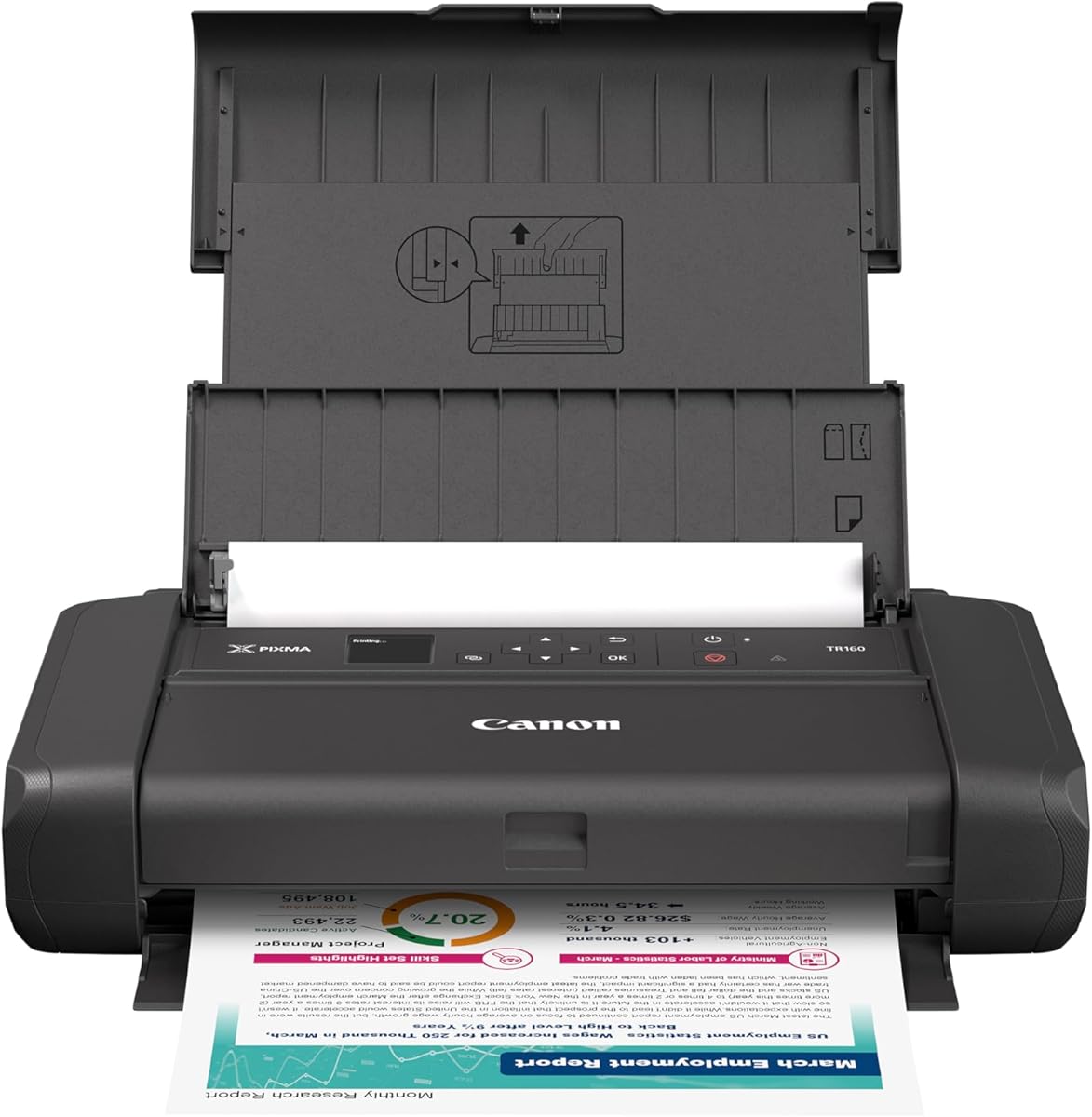
The Canon PIXMA TR160 redefines convenience with a lightweight design that fits easily into backpacks. Its 4.2 rating reflects satisfaction among users needing reliable printing on the go without sacrificing quality.
We may earn a commission when you buy through this link, at no additional cost to you.
Wireless Direct mode allows printing without a router, connecting directly to your Chromebook or phone. The 5-Color hybrid ink system produces sharp text and vibrant photos ensuring professional results wherever you are.
Limitations include a small paper tray requiring frequent refills and battery life that depends on power sources. Users should carry extra paper and a power bank for extended usage away from electrical outlets.
Ideal for remote work or travel, this printer brings office capabilities to any location. Its high portability and strong print quality make it a top pick for travelers and mobile professionals.
Compact and lightweight enough to fit in a standard backpack for travel anywhere.
Connect directly to devices without needing a separate Wi-Fi router or internet connection.
We may earn a commission when you buy through this link, at no additional cost to you.
Selecting the right printer involves weighing factors like connectivity, features, and long-term costs to match your specific workflow needs and budget constraints effectively.
Chromebooks rely heavily on cloud and wireless printing since they lack traditional USB drivers. Ensure the printer supports AirPrint, Mopria, or a dedicated mobile app to guarantee seamless connectivity without complex setup steps.
Prioritize dual-band Wi-Fi support to maintain stable connections in busy networks, reducing the chance of dropped jobs or slow data transfers during critical printing tasks.
Evaluate the printer's ability to handle both text documents and photos if you require versatile output. Look for models with hybrid ink systems or color technologies that deliver sharp text and vibrant images.
Check user reviews regarding print consistency to avoid units that suffer from streaks or faded colors which can compromise professional materials or school assignments.
Beyond the initial purchase price consider the cost of replacement cartridges and ink subscription options. Some models offer Instant Ink or auto-reorder features that can lower long-term expenses significantly for high-volume users.
Calculate the total cost of ownership by factoring in page yield and cartridge prices to ensure the device remains affordable over several years of regular use.
Determine which features like auto-duplex printing or an auto document feeder are necessary for your workflow. These can save time and paper but often come at a higher upfront price than basic all-in-one units.
Balance must-have features against your actual needs to avoid paying for capabilities you will rarely use while maintaining core functionality like scanning and copying.
Measure your available desk space to ensure the printer fits comfortably without crowding your workspace. Compact models are available for smaller environments but may have reduced paper capacity or fewer features.
Consider the physical footprint and design aesthetics to ensure the device complements your home or office environment while providing enough space for loading paper efficiently.
Verify that the printer has strong mobile app support for printing from phones or tablets alongside your Chromebook. Features like scanning to cloud services enhance productivity and document management for remote users.
Look for units that support cloud printing directly to allow printing from anywhere without needing a direct network connection or local device access.
Check the warranty period and available customer support resources to protect your investment against defects. Longer warranties and responsive support teams can save time and money if hardware issues arise unexpectedly.
Read user feedback regarding customer service responsiveness to ensure you will have assistance available if setup problems or technical glitches occur during daily use.
Consider energy-efficient models with Energy Star certification to reduce power consumption and environmental impact over time. Eco-friendly designs often include recycled materials in construction supporting sustainability goals.
Look for features like automatic power-off modes that save electricity when the device is idle, contributing to lower utility bills and a smaller carbon footprint.
Begin by connecting the printer to your home Wi-Fi network using the provided LCD screen or mobile app. Once connected, install the Canon or HP app on your Chromebook to facilitate seamless printing without driver installations.
Regularly clean the print heads and scanner glass to prevent smudges and ensure high-quality output. Use the built-in maintenance tools in the printer app to run alignment tests and ink level checks periodically.
Store your printer in a cool dry place away from direct sunlight to avoid ink drying out prematurely. Cover the unit when not in use for long periods to protect internal components from dust accumulation.
No modern printers use cloud-based printing standards like AirPrint or Mopria that do not require traditional drivers. Simply connect the device to your Wi-Fi network and use the manufacturer app or Chrome OS native support.
Yes most of these models support photo printing on special media. However photo quality varies by model so check if the unit supports borderless printing for professional-looking results.
Yes dual-band Wi-Fi provides better stability and speed especially in homes with many connected devices. It helps avoid dropouts and ensures faster data transfer during large print jobs.
Instant Ink is a subscription service that delivers ink to your door before you run out. It often costs less than buying cartridges individually but requires a monthly fee after any trial period ends.
Absolutely most models support mobile printing through dedicated apps or cloud services. You can send documents or photos from your smartphone directly to the printer without needing a computer.
Many printers support scanning directly to cloud services like Google Drive. Use the printer app or the control panel menu to select the cloud service and scan the document to your account directly.
No Wireless Direct allows you to connect devices to the printer without a router. This is useful when traveling or when internet access is unavailable to print locally.
Yes these models are designed for home office needs offering essential features like scanning and copying. Higher-end models provide faster speeds and larger paper trays suitable for professional workloads.
We reviewed ten excellent options ranging from budget-friendly basics to premium multifunctional machines. The Canon PIXMA TS3720 offers great value for simplicity while the Canon PIXMA TR7120 provides the best overall feature set for power users.
Prioritize connectivity and ease of use when choosing a printer to ensure it integrates smoothly into your digital workflow. Look for models with strong mobile app support and dual-band Wi-Fi to avoid technical hassles daily.
Always check current prices and availability before purchasing as deals change frequently across different retailers. Consider subscription services and warranty options to protect your investment and reduce long-term operational costs effectively.