
Thermalright Trofeo Vision LCD AIO Display
4.3Editor score
9.16 inch wide screen
USB-C plug and play
TRCC software support
Compact stylish build
Adding an LCD screen inside your PC case transforms how you monitor system performance and customize aesthetics. These displays show real-time stats like CPU and GPU temperatures while allowing custom animations or videos on a dedicated panel.
We compared ten leading models based on resolution, mounting options, software support, and ease of connection. Our analysis covers both universal screens and case-specific kits to ensure you find the perfect fit for your hardware setup.
Each pick highlights key features, pros, and cons to help you decide quickly. Prices and availability change often so check the links for the latest deals before making your final selection for this upgrade.
4.3Editor score

4.4Editor score

4.5Editor score
As an Amazon Associate we earn from qualifying purchases.
The following table provides a quick side-by-side comparison of all ten models reviewed in this guide to help you identify key differences at a glance.




The Lian Li SM088X is a top-tier universal LCD screen that offers exceptional clarity and customization for any PC build. Its 8.8-inch display delivers vibrant visuals with ARGB lighting that syncs with your system.
We may earn a commission when you buy through this link, at no additional cost to you.
This screen works as an independent secondary display via USB or 9-pin header so it does not need GPU resources. The L-Connect 3 software allows you to upload custom videos and monitor real-time stats easily.
While it is priced higher than some competitors the build quality and software stability justify the cost. You must use specific screws during installation to avoid issues with the stand.
Buy this if you want a premium universal screen with deep customization and reliable monitoring features for your gaming rig.
The unique design allows it to function as a true secondary monitor without using valuable GPU ports.
The diffused ARGB lighting strip enhances aesthetics and synchronizes with your entire system ecosystem.
We may earn a commission when you buy through this link, at no additional cost to you.
The darkFlash V92 features a 9.2-inch ultra-wide IPS panel that provides excellent visibility for system stats and custom widgets. It is designed specifically for PC case builds rather than standard extended monitors.
We may earn a commission when you buy through this link, at no additional cost to you.
You can connect it via external USB or internal motherboard 9-pin header keeping GPU outputs free. The Station Space software supports plugins GIFs and MP4s without requiring AIDA64.
The main limitation is that it only works on Windows and the software must remain running to show data. This might not suit all users who prefer lightweight background monitoring.
Choose this screen if you want a wide display with flexible connectivity and no extra software dependencies.
Use external USB or internal motherboard headers to fit your specific case setup requirements.
The software supports weather news and stock widgets alongside hardware monitoring for a rich display.
We may earn a commission when you buy through this link, at no additional cost to you.
WOWNOVA offers an 8-inch smart panel that stands out with its ability to extend your desktop for a true secondary monitor experience. This feature allows you to run apps or games on the screen.
We may earn a commission when you buy through this link, at no additional cost to you.
The screen supports dynamic video themes with a visual theme editor for drag-and-drop creativity. It connects via a single USB-C or 9-pin cable without needing HDMI or GPU ports.
While the price is higher the unique desktop mode and high resolution justify the cost for power users. You need Windows 10 or 11 and the software must be running.
Get this if you need an extended display inside your case with robust customization and video playback.
Switch to desktop mode to use the screen as an extended display for more workspace.
Create your own dynamic themes with a drag-and-drop interface for full customization.
We may earn a commission when you buy through this link, at no additional cost to you.
The wisecoco 12.6-inch display is a massive upgrade for those who want a large panel in their case. It supports HDMI input making it versatile as a desktop monitor outside the case too.
We may earn a commission when you buy through this link, at no additional cost to you.
It comes with built-in speakers and a specific bracket for Hyte Y60 cases but can be used elsewhere. The package includes cables and a driver for simple installation without extra parts.
You will need to provide 5V power since the included cable does not cover all scenarios. The size is significant so check your case clearance before buying.
Select this if you need a large HDMI-compatible screen with speakers for a media-rich PC build.
Use HDMI to connect to PC laptops or consoles for versatile usage outside the case.
Built-in speakers remove the need for external audio devices in your setup.
We may earn a commission when you buy through this link, at no additional cost to you.
Hosyond delivers an 8.8-inch touchscreen with HDMI input for interactive control of your system stats. It works with multiple operating systems including Linux and Windows for flexible integration.
We may earn a commission when you buy through this link, at no additional cost to you.
The capacitive touch allows you to interact with themes and apps directly on the screen. Power use is low at 3.8W making it efficient for constant monitoring.
You must download AIDA64 separately and ensure your OS supports the drivers for touch. This is a niche choice for those who want touch in their case.
Buy this if you need a touchscreen for a Raspberry Pi or PC with multi-system support.
Interact with your dashboard directly using the capacitive touchscreen layer.
Consumes just 3.8W for energy efficient performance without heat issues.
We may earn a commission when you buy through this link, at no additional cost to you.
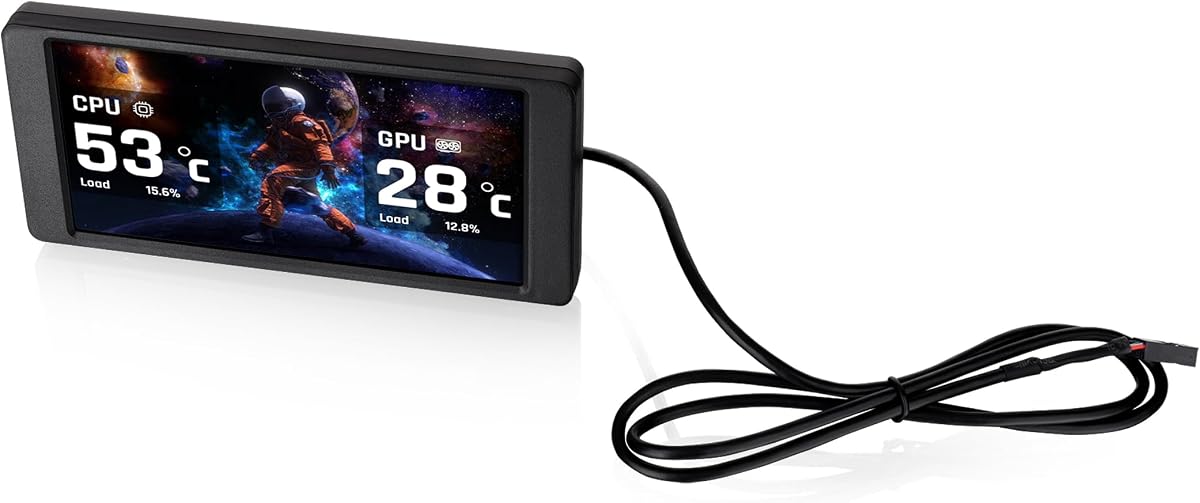
The Thermalright Trofeo Vision offers a large 9.16-inch screen at a competitive price. It uses a simple USB-C connection with TRCC software for basic monitoring and theme changes.
We may earn a commission when you buy through this link, at no additional cost to you.
This is an excellent budget choice for users who want a wide display without spending too much. The plug-and-play design means no complex drivers are required for Windows.
Software features are less advanced than premium models but cover core monitoring needs. The compact size fits most cases without taking up too much space.
Choose this for a cost-effective wide screen with reliable performance for daily monitoring.
Set up is quick with a simple Type-C interface compatible with most Windows systems.
Use TRCC app to design your own interface with preset themes and widgets.
We may earn a commission when you buy through this link, at no additional cost to you.
Thermaltake designed this 6.0-inch kit specifically for View 370 and 390 series chassis for a perfect fit. It supports TT RGB PLUS 3.0 for enhanced control and monitoring features.
We may earn a commission when you buy through this link, at no additional cost to you.
You can upload custom graphics and video files to personalize the display with your content. The standalone mode works without software but full features require the app.
Compatibility is limited to specific cases so check your chassis model before purchasing. The resolution is lower than newer wide screens but adequate for basic stats.
Get this only if you own a compatible Thermaltake case and want seamless integration.
Optimized for View 370 and 390 cases for perfect panel fit.
Upgraded features and clean UI for better customization and control.
We may earn a commission when you buy through this link, at no additional cost to you.
GeeekPi provides a large 12.6-inch touchscreen that fits Hyte Y60 cases with precision. It supports up to 10-point multi-touch for interactive apps and monitoring control.
We may earn a commission when you buy through this link, at no additional cost to you.
The package includes a screwdriver and bracket for easy installation without extra parts. You get built-in speakers and plug-and-play support for Windows and macOS systems.
While it is expensive the touch capability and specific fit for Y60 make it unique. Check clearance as the unit is thicker and larger than standard panels.
Buy this if you have a Hyte Y60 case and want a premium large touch screen.
Interact with up to 10 simultaneous touch points for smooth control.
Designed specifically to match the Hyte Y60 case panel perfectly.
We may earn a commission when you buy through this link, at no additional cost to you.
Thermalright TV offers a 9.16-inch display with magnetic suction allowing screw-free installation. The metal frame design makes it easy to place or remove as needed.
We may earn a commission when you buy through this link, at no additional cost to you.
It supports dynamic image switching and video playback via TRCC software. You need to ensure wiring is complete before installing the software for proper control.
The magnetic mount is convenient but depends on metal surfaces in your case for stability. It requires the software to run for full monitoring functionality.
Choose this if you want a modular screen that can be moved without tools.
No screws required for quick and easy removal and installation.
Software manages monitoring on/off functions for full control.
We may earn a commission when you buy through this link, at no additional cost to you.
This 6.86-inch Thermalright display is a compact option for small cases or coolers. It uses magnetic mounts to fix the panel to the chassis at any position.
We may earn a commission when you buy through this link, at no additional cost to you.
It supports dynamic and static image switching via TRCC software and USB-C connection. The low resolution is fine for basic stats but lacks detail for media.
You must ensure wiring is complete before installing software. The control relies entirely on the software running in the background.
Select this if you need a small affordable magnetic screen for limited space.
Move freely to various positions in the chassis without fixed screws.
Functions depend on software installation for monitoring and on/off.
We may earn a commission when you buy through this link, at no additional cost to you.
Choosing an LCD screen involves several factors to ensure compatibility with your case and PC.
Screen sizes range from compact 6-inch panels to wide 12-inch displays. Measure your available space inside the case to find a fit that does not block airflow or cables.
Pick a size that matches your case design and available clearance.
Look for IPS panels with at least 1920×480 resolution for sharp text and images. Higher resolution ensures stats are readable from different viewing angles.
Prioritize IPS for wider viewing angles and better colors.
Most screens connect via USB-C or motherboard 9-pin headers. Ensure your motherboard supports the required connection to avoid extra power needs.
Verify USB or 9-pin header availability on your motherboard.
Software determines customization options like themes and monitoring widgets. Check if the tool supports Windows Linux or macOS before buying.
Ensure the software matches your operating system.
Mounting can be screw-based magnetic or specific to case panels. Magnetic mounts offer flexibility while screw-based ones provide stability.
Choose mounting that fits your case structure and needs.
Some screens draw power from USB while others need dedicated cables. Confirm power specs to avoid overloading your USB headers or needing adapters.
Check power needs match your PC's capabilities.
Extra features like touch input HDMI or speakers enhance utility. Determine if these add value to your use case before paying extra.
Assess if extra features justify the price difference.
Certain screens fit specific models like Hyte Y60 or Thermaltake View series. Always verify case compatibility to avoid returns.
Confirm case match before purchase.
Start by connecting the screen to your motherboard or USB port as per manual instructions. Install the required software and reboot your system to initialize the display.
Customize your display using the software interface to choose themes that match your setup. Monitor real-time stats to track performance and temperatures.
Clean the screen with a soft dry cloth to avoid scratches and avoid harsh chemicals. Ensure all connections remain tight to prevent display issues.
Most screens connect via USB or motherboard headers so they do not require GPU ports. This leaves your GPU available for primary display and rendering tasks.
Yes models with desktop extension or HDMI inputs can run games or apps. However performance depends on system resources and software support.
Most screens need their specific software to show data or themes. Some offer standalone modes for basic monitoring without software installed.
Mounting varies by model. Some use screws with brackets others use magnetic frames or panel-specific slots for fit.
Some models support Linux drivers others are Windows only. Always check the official software requirements before buying for Linux compatibility.
Yes you can upload custom images GIFs and videos depending on the software. Most tools support various media formats for personalization.
Most draw power from USB or 9-pin headers. Some may need separate DC cables depending on size and brightness requirements.
Removing the software may stop data display or themes. The screen might show static content or turn off depending on the model.
We reviewed ten LCD screens offering a range of sizes and features for PC case customization. The top picks include the Lian Li SM088X for premium quality and WOWNOVA for desktop mode.
Prioritize software support and connection types to ensure smooth integration with your system. Consider case compatibility and mounting options for the best fit.
Prices and availability change often so check the latest links for deals before you buy. Choose a model that matches your needs and budget today.